
This article is part of a beginner series explaining how to install, secure and use a Bitcoin wallet. This second part of the series covers installing Samourai Wallet on Android.
Find part one of the series here, part three here, part four here and part five here.

If you have an Android mobile phone, then I highly recommend using Samourai Wallet. This article will walk you through the basic steps for installing, securing and using Samourai Wallet on Android. Before getting started, it is a good idea to have a pen and paper ready. And Remember to start with small amounts of bitcoin until these concepts make more sense and you are comfortable putting your funds in a mobile wallet. And always backup your seed phrase!
Step One: Install Samourai Wallet
Samourai Wallet can be downloaded from its website or F-Droid, compiled from source code or installed directly on your Android device from Google Play Store.
For the simplistic and basic purposes of this guide, I’m only going to cover the installation instructions from Google Play Store. Be aware of malicious apps that may look similar, ensure that you are getting the Samourai Wallet app with over 100,000 downloads.
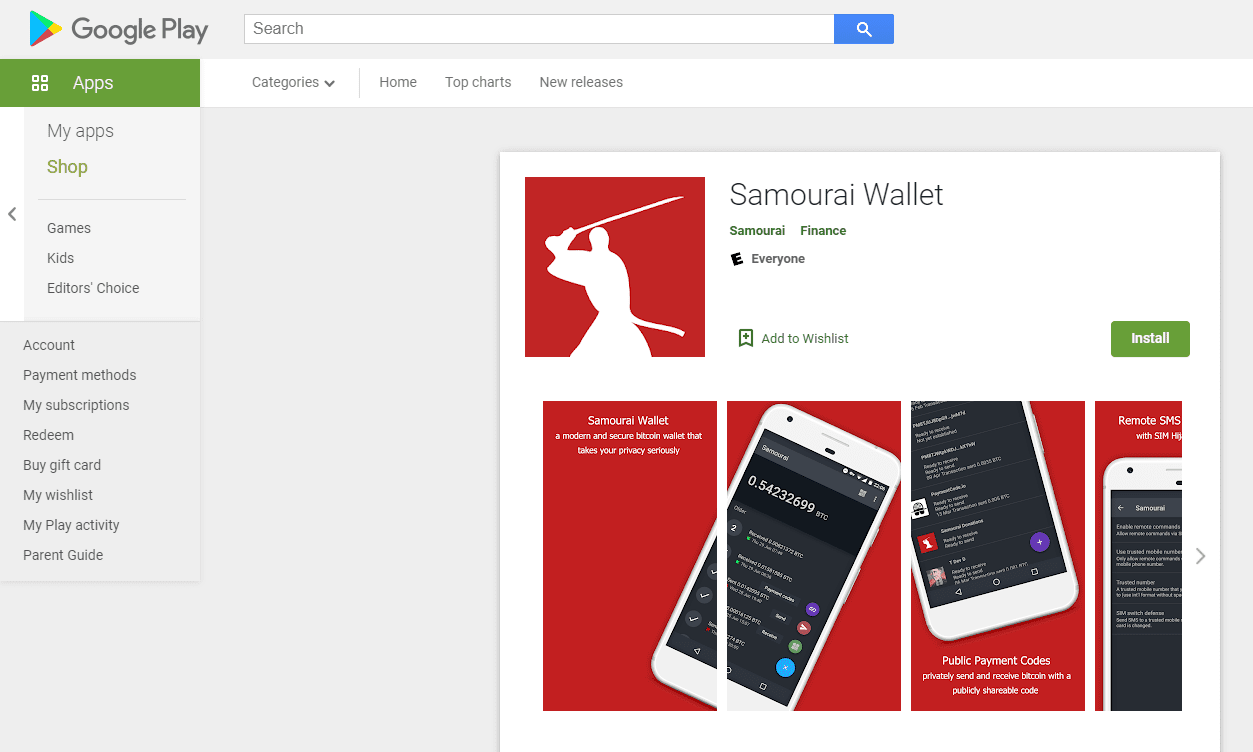
From your Android device, navigate to the Google Play Store app and then search for Samourai Wallet and install it, then open it.
Step Two: Allow Permissions
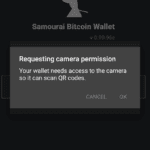
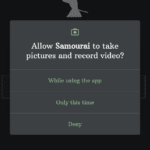
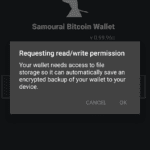
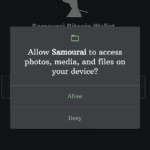
Allow camera permission for the app and operating system (OS). This allows for QR code scanning. Then, Allow read/write permission for the app and OS. This allows the encrypted backup file to be saved.
Step Three: Enable Tor
Make sure you enable Tor by moving the slider to the right. Wait for the confirmation, this allows app communication over Tor.
Note: If you have a Dojo, this is the step at which you would connect it. Keep in mind that, although running your own node is an advanced topic, it is highly recommended that you learn about it. If you do not use your own node, then you are trusting someone else’s node. There are many full node implementations available. This goes beyond the scope of this article but for some good resources, check here.
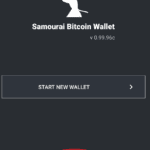
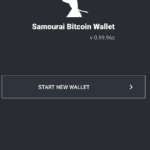
After enabling Tor, Select “START NEW WALLET.” Once installed, your Samourai Wallet will save an encrypted backup file to your Android device.
Step Four: Create A Passphrase And PIN
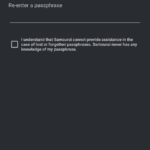
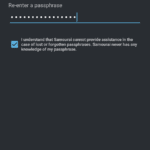
Next, you will be asked to create a passphrase. This is the passphrase that encrypts your backup file and your wallet’s BIP39 passphrase, also known as your “thirteenth word.” Any combination of numbers, letters and special characters is acceptable. I suggest trying to use a high-entropy password that cannot be guessed, such as one from a random password generator. Others may suggest using a passphrase that can be easily memorized. Weigh the tradeoffs for yourself and do what is best for you. Whatever you choose, remember that this passphrase will be necessary to recover your wallet in the event that your mobile phone is lost, damaged or replaced. Confirm acknowledgement that no one can help you recover this passphrase, then select “Next.”
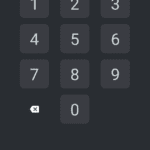
Next, create a PIN code for accessing the app. If someone were to gain access to your Android phone, then this PIN code will protect your wallet. Any combination of numbers between five and eight digits will work. Try to use a PIN that cannot be guessed. Once entered, you will be asked to confirm the PIN code. Then select “Next.”
Step Five: Secure the Seed Phrase
Note: This is the most important step.
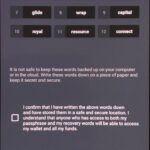
- Write down your words in order on a piece of paper
- Secure this piece of paper as if it were gold or jewelry
- Do not screenshot these words.
- Do not save these words on a computer or on your phone
- Do not say these words out loud
- Never share these words with anyone for any reason
- Your bitcoin is only as secure as your 12-words and passphrase.
- Double check your work, then confirm acknowledgement that you have secured your 12 words
- Select “RETURN TO WALLET”
- You will also need your passphrase from above for a complete secure backup
It’s a good idea to use the recovery worksheet provided by Samourai Wallet, it has all of the necessary fields specifically for your Samourai Wallet to fill in and help you keep your backup information organized. Find the downloadable PDF here.
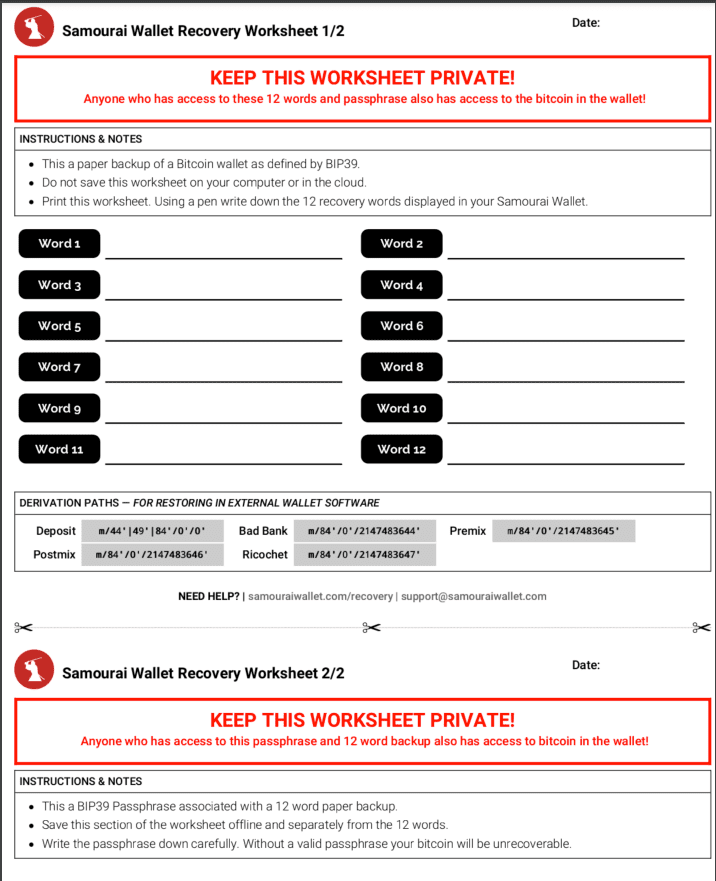
Note: Once you get more serious about Bitcoin, consider securing your seed phrases on metal instead of on paper.
Step Six: Claim Your PayNym
Each Samourai Wallet user gets a unique “PayNym.” This can be used to collaborate with other Samourai Wallet users in cahoots transactions, to post public payment codes without revealing transaction history and more.
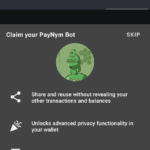
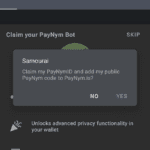
Select “CLAIM YOUR PAYNYM” at the bottom of the screen. Then select “YES” to claim your new PayNym.
Step Seven: Receive Bitcoin
There are different ways to receive bitcoin to your new wallet. From your wallet home screen, select the blue plus (+) sign and then select the green “Receive” piggy-bank button. This will bring up your first receiving address QR code. Or, to receive from another Samourai Wallet user, you can select the purple “PayNyms” icon instead, which will allow you to share the payment code in QR format or in text. Once you and another Samourai Wallet user follow one another’s PayNyms, then you can collaborate in cahoots transactions together.
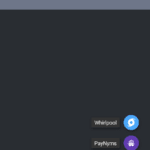
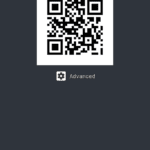
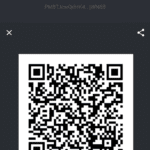
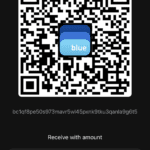
The person sending you bitcoin can scan your wallet address QR code and spend from their wallet.
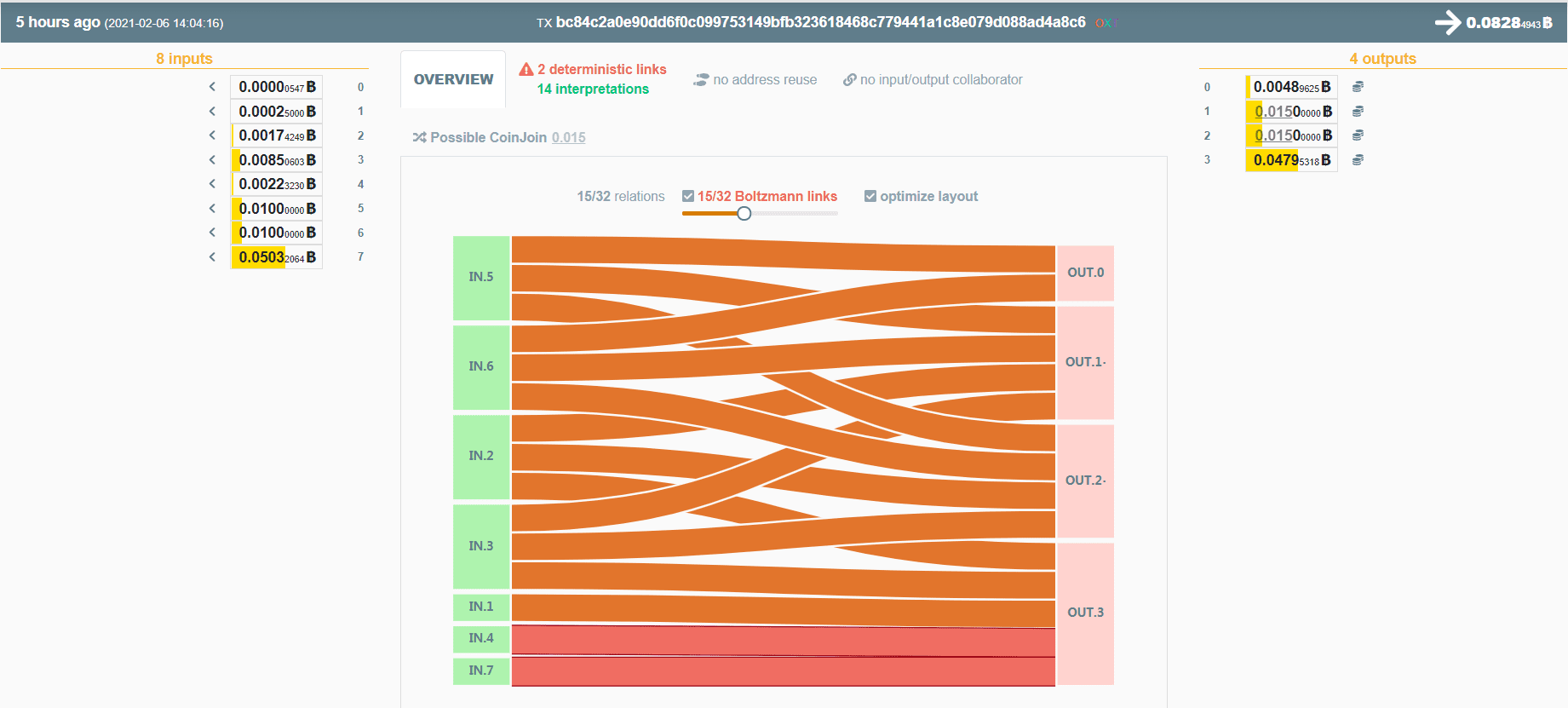
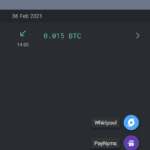
For example: Samourai Wallet users can collaborate in privacy-enhancing transactions like Stonewallx2. Using your bitcoin address QR code as the receiver, your sender can use their PayNym to collaborate with others to send you funds more privately. With the bitcoin address displayed above, the receiver has now been given 0.015 BTC from a privacy-enhancing Stonewallx2 transaction.
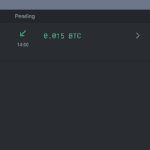
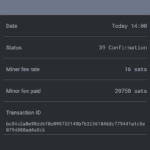
Once you have an unspent transaction output (UTXO) in your wallet like this, you can easily click on it and view more details. You can even open the transaction identification (TXID) on a block explorer and see even more details.
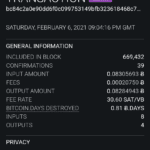
Below is how the transaction looks on-chain. Eight inputs, four outputs, in this example. Two of the outputs are identical, one is the actual spend and the other is a decoy. The common ownership heuristics have been broken. This is one way that privacy can be enhanced with these tools.
Step Eight: Spend Bitcoin
Find a collaborator and create a privacy-enhancing transaction with another Samourai Wallet user to send to any third party. First, select the blue “+” sign, then select the red “send” button, then enable cahoots.
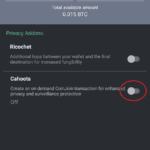
Next, select “STONEWALLx2” and then select “Online” for the participant.
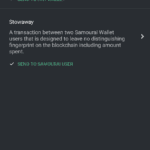
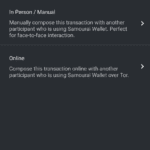
You and your collaborator should be following one another’s PayNyms, and then you can select your collaborator’s PayNym from your contact list. Then select the square-looking icon at the top to open your camera and scan the QR code from the person receiving your payment (a Blue Wallet user, in this example). Then, fill in the amount to send, 0.01 BTC in this example. Finally, select “REVIEW TRANSACTION.”
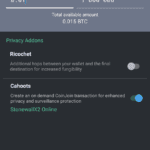
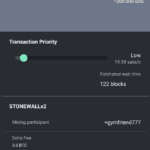
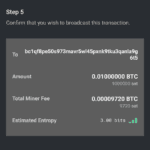
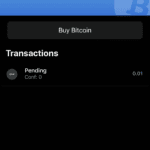
Next, you will be able to select your miner’s fee rate. Set it higher for more urgent payments accordingly. Once you begin the Stonewallx2 transaction, Samourai Wallet will exchange details of the transaction between the two collaborators’ wallets. This process is encrypted over Tor on the Soroban communication layer. You’ll get one last chance to review your transaction before broadcasting. The receiver should see a pending transaction arrive within moments.
You can also watch this demonstration video for installing Samourai Wallet on an Android for the first time here:
Conclusion
Samourai Wallet is a privacy-focused Bitcoin wallet that is most popular for its CoinJoin implementation, Whirlpool. Additionally, Samourai Wallet has post-mix cahoots spending tools like Stowaway and Stonewallx2. These collaborative transactions break common input ownership heuristics by obfuscating the true amount being sent and using decoy outputs.
Samourai Wallet was also the first Bitcoin wallet to implement BIP47, which enables users to share a payment code without exposing additional wallet details, enhancing privacy. Also, Samourai Wallet never reuses address and segregates toxic change and it has coin control and other advanced features. Your Samourai Wallet can also be connected to your own Bitcoin full node by using Ronin Dojo; another developer team that has built a powerful Bitcoin full node stack that is designed specifically for integrating with your Samourai mobile wallet and your desktop Whirlpool client. All communications in the Samourai Wallet/Ronin Dojo stack are routed over Tor by default.
To learn more about using Samourai Wallet, jump in its Telegram channel here.
You should now have a basic understanding of how to install Samourai Wallet on your Android, how to secure your wallet’s 12-word seed and passphrase and how to receive/send bitcoin in a privacy-enhancing way.
This is a guest post by Econoalchemist. Opinions expressed are entirely their own and do not necessarily reflect those of BTC Inc or Bitcoin Magazine.